How to set up Variation Swatches for my products in WooCommerce
Gomax Core Variation Swatches replace the default WooCommerce dropdown with color, image, or label swatches, making it easier for shoppers to pick a product variation. This guide covers creating attributes, assigning them to a product, and configuring how the swatches look.
Adding and configuring a product attribute
Section titled “Adding and configuring a product attribute”-
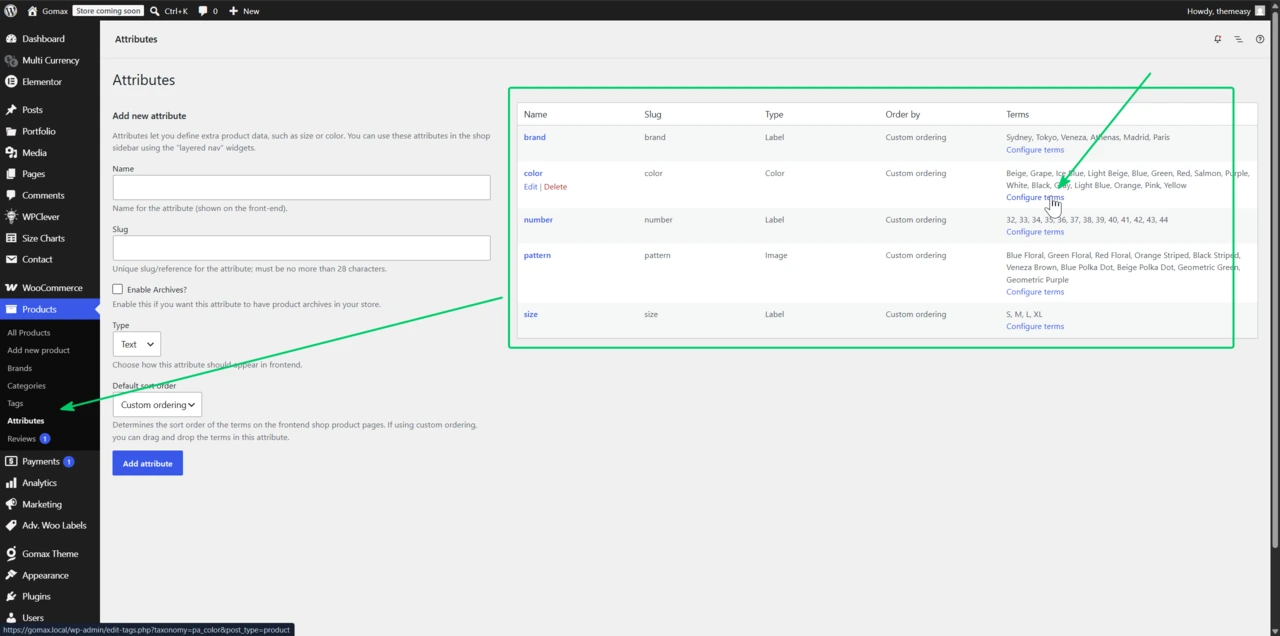
From the WordPress Dashboard, go to Products » Attributes.
-
Fill in the fields on the left side of the screen, choose a type, and click Add Attribute. You can select from 3 attribute types:
- Label: shows a plain text label for each variation.
- Color: shows a color swatch for each variation.
- Image: shows an image swatch for each variation.
The table on the right lists existing attributes and lets you edit or delete them.
-
Hover over an attribute in the table and click Configure Terms to manage its values.
-
Add or edit a term:
- Add: fill in the fields, set your preferences, and click Add New.
- Edit: hover over a term and click Edit, adjust it, then click Update.
Assigning an attribute to a product variation
Section titled “Assigning an attribute to a product variation”-
From the WordPress Dashboard, go to Products and open the product you want to edit.
-
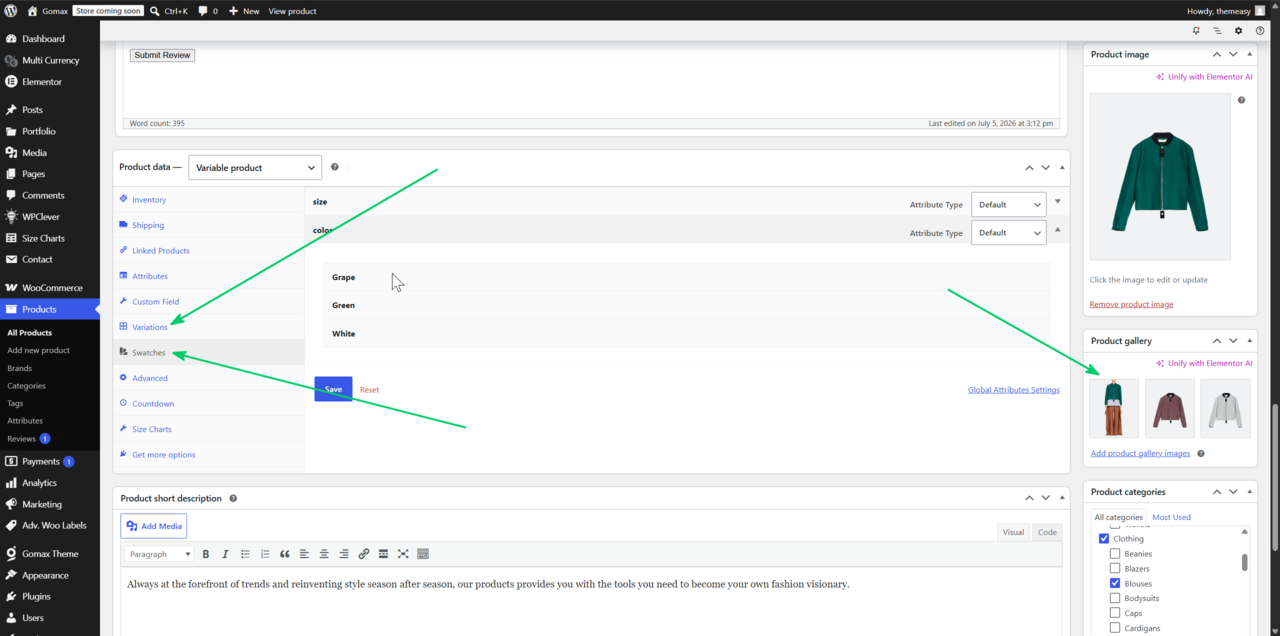
In the Product Data panel, open the Attributes tab and add the attributes you want to use for variations.
-
Open the Variations tab and configure your product variations.
-
Open the Swatches tab and set your preferences for how the swatches display.
In the Attribute Type field, choose:
- Default: applies the global settings from Products » Attributes.
- Your Attribute: overrides the display for this product only.
Once configured, shoppers see color, image, or label swatches directly on the product page instead of a dropdown, making variation selection faster and clearer.
For related WooCommerce setup, see how to set up Custom Tabs for your products and how to set up the Cart, Checkout, and My Account pages.