How to add or change logo on WordPress website
This guide shows you where to upload and configure your site logo, sticky logo, mobile logo, and site icon in Gomax.
Go to the branding settings
Section titled “Go to the branding settings”In your WordPress dashboard, go to Gomax » Branding.
Set your logo options
Section titled “Set your logo options”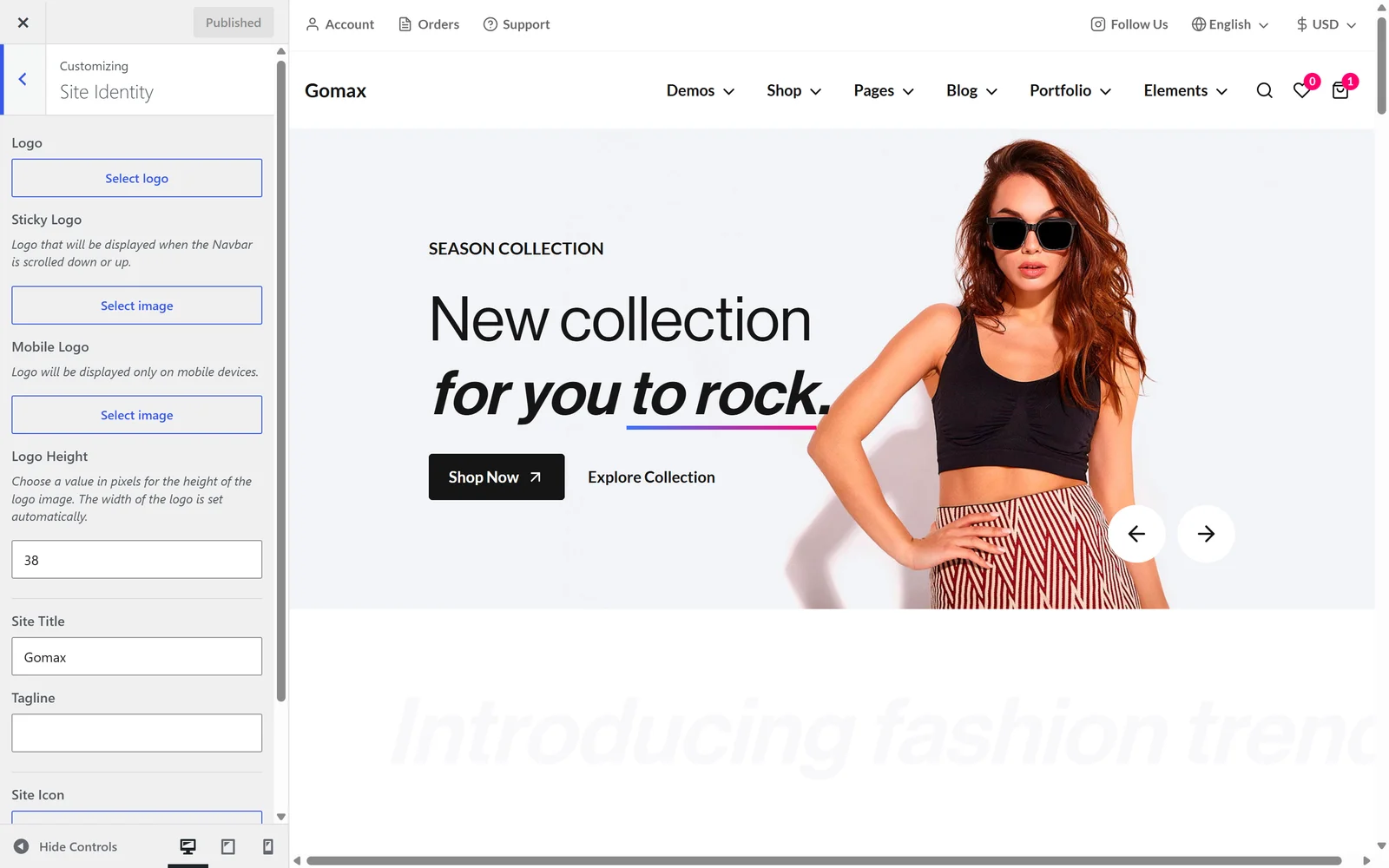
| Option | Description |
|---|---|
| Logo | The main logo file, shown across your site. |
| Sticky Logo | An alternate logo shown when the navbar becomes sticky while scrolling. |
| Mobile Logo | A logo shown only on mobile devices. |
| Logo Height | The logo’s height, in pixels. Width scales automatically to match. |
| Site Icon | The icon shown in browser tabs, bookmarks, and the WordPress mobile app. |
Save your changes
Section titled “Save your changes”Click Publish to save.