One Click Demo Import: How to Fix Data Import Issues in WordPress
One Click Demo Import lets you load the full demo content shown on the theme preview with a single click. If the import fails or stalls partway through, use the checks below to find and fix the cause.
Search for your specific error message in the official plugin documentation if none of these steps resolve it.
Common causes and fixes
Section titled “Common causes and fixes”Increase PHP limits
Section titled “Increase PHP limits”Most import failures — white screens, content that stops importing partway, empty pages, or a theme that won’t save — trace back to low PHP configuration limits. See The Ideal WordPress PHP and Server Requirements for the values to set.
If you can’t edit these yourself, ask your hosting provider to raise them to at least the recommended minimums.
Check server security settings
Section titled “Check server security settings”Security rules on the server, such as ModSecurity, can block remote requests or file uploads and interrupt the import. Disable or adjust these rules temporarily for the duration of the import.
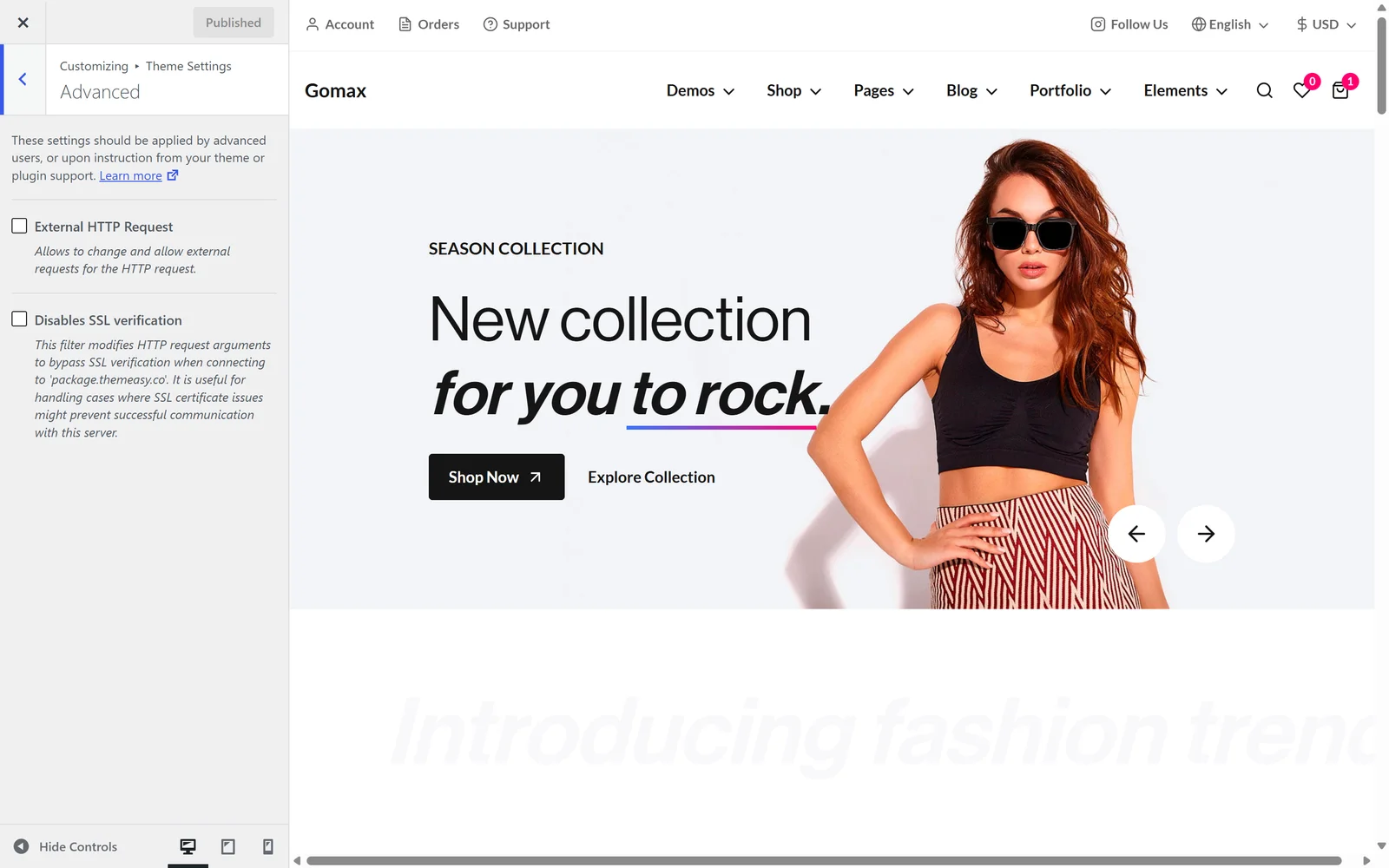
Activate External HTTP Request
Section titled “Activate External HTTP Request”Go to Theme Settings » Advanced and enable the External HTTP Request option.
This option is only available on themes built with Gomax Core.
Clear cache
Section titled “Clear cache”Clear your browser cache and any server-side cache, including caching plugins, before retrying the import.
Disable security plugins
Section titled “Disable security plugins”Temporarily disable security plugins, since they can block the import process. Reactivate them once the import finishes.
Check for plugin conflicts
Section titled “Check for plugin conflicts”Conflicting plugins, particularly security or optimization plugins, can block or limit the demo import. Disable them temporarily to see if the import completes.
Check server resources
Section titled “Check server resources”Some shared hosting plans don’t allocate enough CPU, RAM, or I/O for a large import, which can cause it to slow down or fail outright. Consider a temporary upgrade or a different host if this keeps happening.
Check required PHP extensions
Section titled “Check required PHP extensions”The demo import feature needs certain PHP extensions, such as cURL and file_get_contents, enabled on the server. Confirm with your host that these are installed and active.
Check the PHP XML extension
Section titled “Check the PHP XML extension”Confirm the XML extension is installed and enabled on your server. Without it, data can’t transfer correctly during import.
Enable allow_url_fopen
Section titled “Enable allow_url_fopen”Some hosts disable the allow_url_fopen directive, which stops WordPress from reaching remote files. Enabling it allows the demo import to fetch external resources.
Check OpenSSL and cURL versions
Section titled “Check OpenSSL and cURL versions”An OpenSSL or cURL error usually means one of them is out of date on your server. Ask your hosting provider to confirm the versions and update them if needed.
Check database privileges
Section titled “Check database privileges”The database user may lack the privileges needed to insert large amounts of data or run certain SQL commands, which causes the import to fail partway through.
Check file permissions
Section titled “Check file permissions”Confirm your WordPress installation has correct file permissions: folders should be 755 and files 644.
Check the SSL certificate
Section titled “Check the SSL certificate”Make sure your site’s SSL certificate is valid and configured correctly. Test it with a tool such as SSL Labs.
Try a manual import
Section titled “Try a manual import”Request the XML file from the theme author, then go to Tools » Import in your WordPress admin and run the WordPress importer.
Re-import the demo
Section titled “Re-import the demo”After working through the checks above, try importing the demo again — the issue is often resolved by the adjustments alone.
Request a full copy of the demo site
Section titled “Request a full copy of the demo site”As a last resort, contact support at adm.codings@gmail.com for a complete copy of the demo site. This gives you content identical to the theme demo, but it replaces all existing data on your site, so it’s only suitable for a blank installation.
For the standard import process, see Import Demo Data.