Important Elementor Settings
A few Elementor settings need adjusting so the page builder works smoothly with Gomax. This article covers enabling Elementor on the theme’s custom post types and disabling Elementor’s built-in lightbox to avoid conflicts with the theme’s own styles.
Adjusting Elementor settings
Section titled “Adjusting Elementor settings”-
From the WordPress admin, go to Elementor » Settings.
-
In Post Types, check Megamenu, Portfolio, and Global Sections, in addition to Posts and Pages, which are already checked. Then check Disable Default Colors and Disable Default Fonts.
-
Click Save Changes.
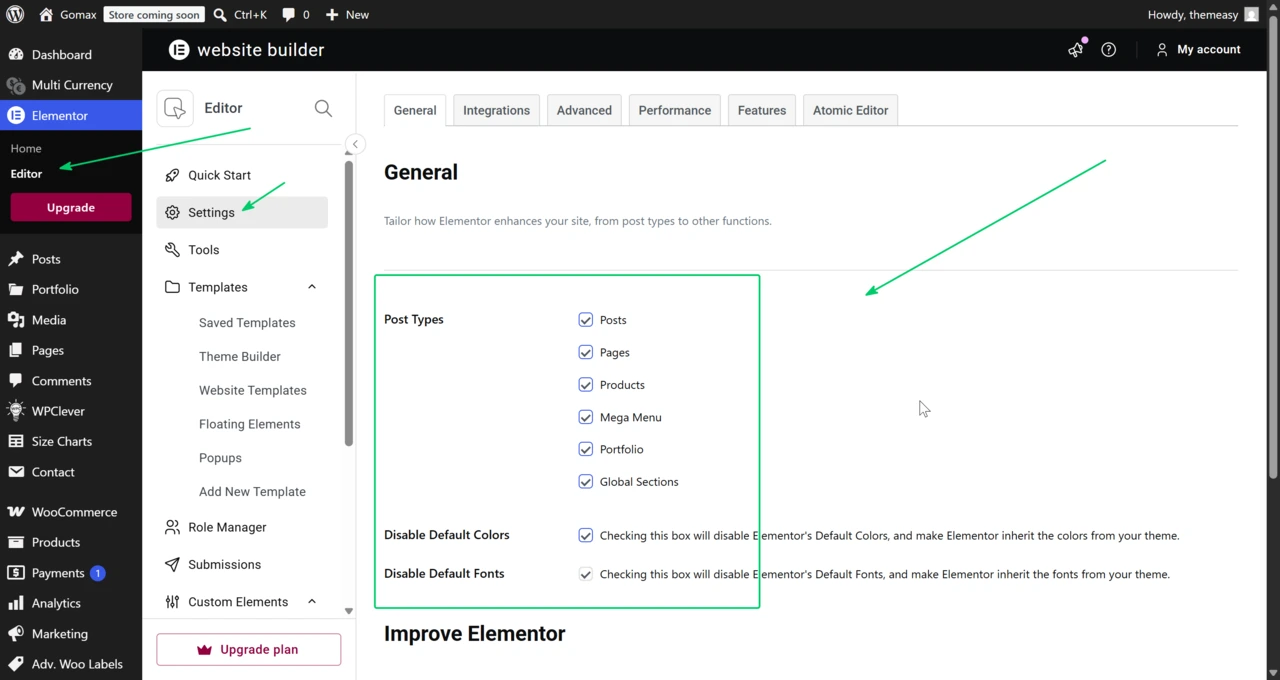
Enabling Elementor on these post types lets you edit Megamenu items, portfolio projects, and global sections with the page builder. Disabling the default colors and fonts prevents Elementor from overriding the theme’s typography and color scheme.
Disabling the Elementor lightbox
Section titled “Disabling the Elementor lightbox”Elementor loads its own lightbox gallery styles by default. Disable it, since Gomax already provides this feature.
-
Open any page or post in Elementor, click the hamburger menu in the upper-left corner of the widget panel, then go to Site Settings » Lightbox.
-
Toggle the switch to disable the lightbox.
-
Click Update at the bottom of the panel to save the changes.