Mega Menu: How to add, edit and customize
Learn how to create a Mega Menu, build its content with Elementor, and attach it to any item in your navigation menu.
What is a Mega Menu?
Section titled “What is a Mega Menu?”A Mega Menu is a dropdown for a navbar that holds more content than a regular dropdown. It lets you organize items into columns, add images, and include other elements that would not fit in a simple dropdown list.
Gomax includes an exclusive Mega Menu feature, built as a custom post type, that works with any menu registered in WordPress. This makes it possible to attach a Mega Menu to any navbar item.
You can customize a Mega Menu’s content with Elementor and add any widget to it.
If you have imported the Demo Data, several ready-made Mega Menus are already available in the list — you only need to assign them to a menu item and customize the content.
Adding or editing a Mega Menu
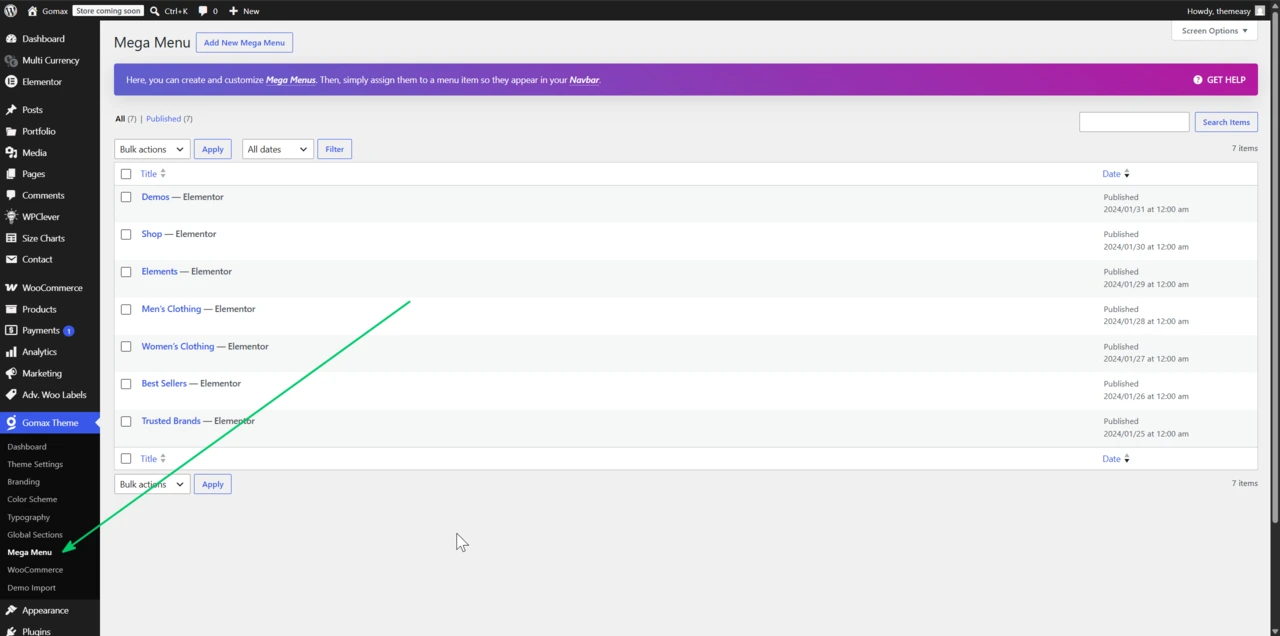
Section titled “Adding or editing a Mega Menu”- From the WordPress admin, go to Your Theme » Mega Menu.
- Click Add New to create a Mega Menu, or click Edit on an existing item in the list.
- Choose the Mega Menu you want to customize and click Edit with Elementor to build its content.
Attaching a Mega Menu to a navbar item
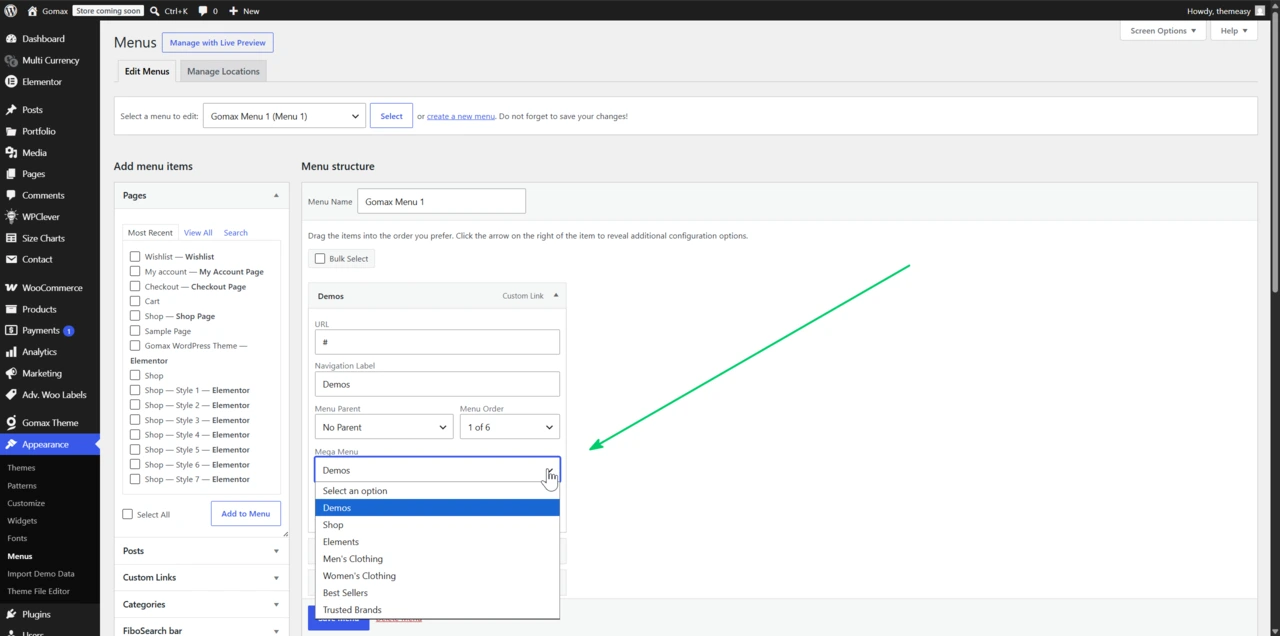
Section titled “Attaching a Mega Menu to a navbar item”- From the WordPress admin, go to Appearance » Menus.
- In the upper right corner, expand Screen Options and check the CSS Classes option.
- Under “Select a menu to edit,” choose the menu you want and click Select. If this option does not appear, you have not created a menu yet.
- Under “Menu structure,” expand the menu item you want to attach a Mega Menu to. A Mega Menus dropdown appears — select the Mega Menu you want to use.
- In the CSS Classes field, type
has-megamenu. - Click Save Menu to apply the changes.
Once saved, the Mega Menu appears on the front end whenever a visitor opens that navbar item.
Related reading
Section titled “Related reading”- Global Sections: How to add, edit and choose conditions for another Elementor-driven, site-wide content feature.
- Gomax Core Widgets: Improve the Page Building Experience with Elementor for the widgets you can add inside a Mega Menu.