Import Demo Data
Import the Gomax demo content to start your site with the same pages, sections, and layouts you see on the theme demo, instead of building everything from scratch.
Before You Start
Section titled “Before You Start”This feature requires the One Click Demo Import plugin. Install and activate it along with the other Required Plugins before continuing.
How to Import the Demo
Section titled “How to Import the Demo”-
Go to Gomax » Demo Import.
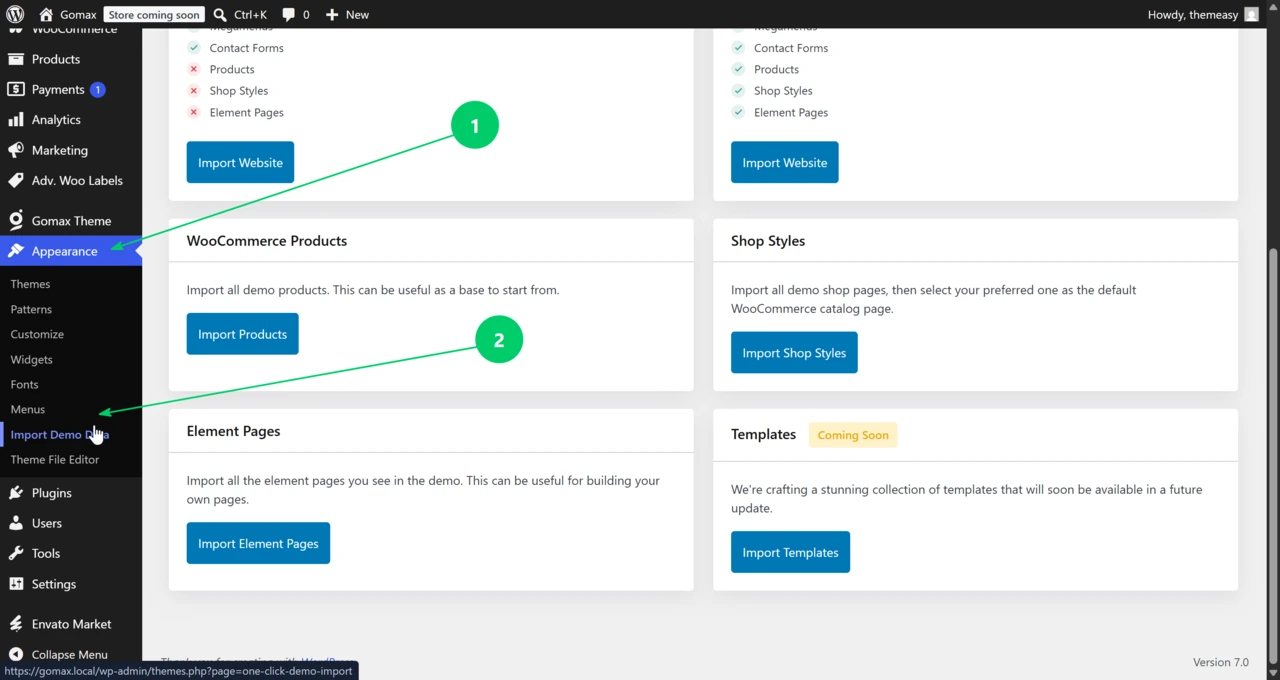
WordPress admin sidebar expanded to show the Gomax menu with the Demo Import submenu item highlighted. -
Choose an import method: Pre-Built Websites, All Content, Pages and Posts, Global Sections, Element Pages, or WooCommerce Products.
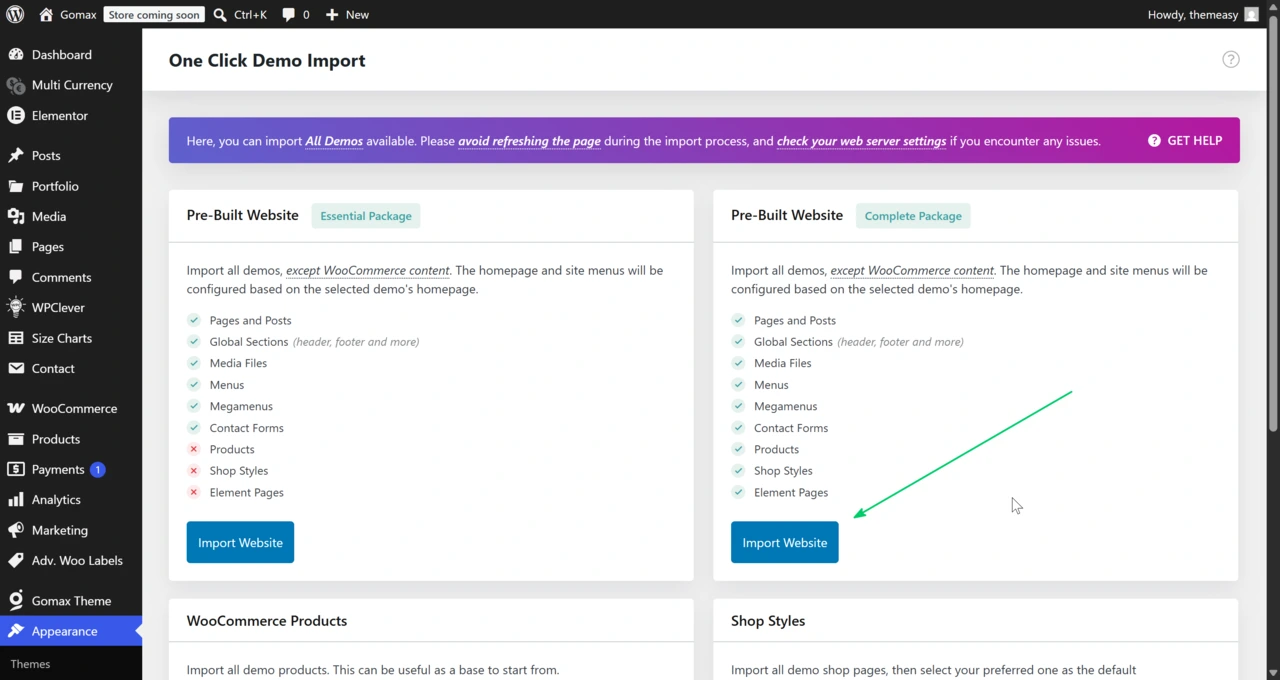
Demo Import screen showing the available import method options (Pre-Built Websites, All Content, Pages and Posts, Global Sections, Element Pages, WooCommerce Products). -
Click Import Demo, then click Continue & Import.
-
Wait until the import process finishes. Do not refresh the page while it runs.
Troubleshooting Import Issues
Section titled “Troubleshooting Import Issues”Most import problems, such as a white screen, content that fails to import, empty pages, or theme settings not saving, come from low PHP configuration limits or server restrictions.
To fix this, increase your server’s PHP limits. If you’re comfortable doing this yourself, update your hosting configuration directly. Otherwise, contact your hosting provider and ask them to raise the limits to the minimum required for the import.
For a deeper look at common import failures and fixes, see One Click Demo Import: How to Fix Data Import Issues in WordPress.