How to set up Custom Tabs for my products in WooCommerce
The Custom Tabs feature in Gomax Core lets you replace the default WooCommerce product tabs with your own, each designed in Elementor. This guide walks through enabling custom tabs, building tab content as Elementor templates, and adding those tabs to a product.
How Custom Tabs Work
Section titled “How Custom Tabs Work”Instead of the default WooCommerce tabs (Description, Additional Information, Reviews), you can create as many tabs as you need and design each one freely with Elementor. This works well for product descriptions, detailed specs, brand information, videos, size charts, or FAQs.
Enable and Set Up Custom Tabs
Section titled “Enable and Set Up Custom Tabs”-
Go to Gomax » WooCommerce » Product Tabs and set Product Tabs Mode to Custom.
If you’d rather keep the default WooCommerce tabs, leave this set to WooCommerce Default.
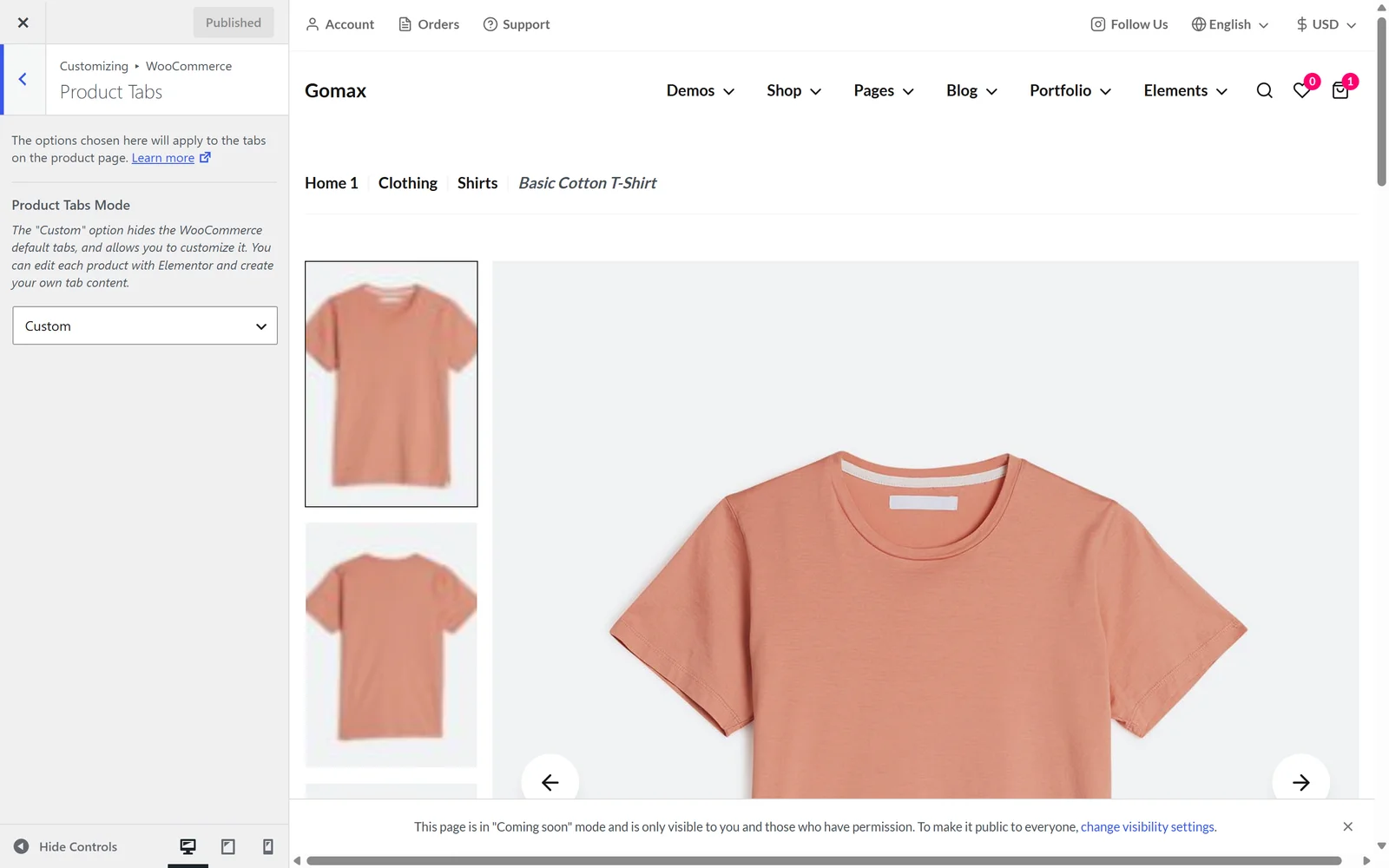
Gomax » WooCommerce » Product Tabs admin screen showing the Product Tabs Mode option set to Custom. -
Go to Elementor » Templates, click Add New, choose the Section type, and give the template a name.
-
Edit the template with Elementor. Use any of the Gomax Core widgets, or any other Elementor or third-party widgets, to build the tab content: a product description, specs, brand info, a size chart, video tutorials, an FAQ section, and so on.
-
Save the template. Elementor generates a shortcode for it, visible in the templates list. Copy this shortcode — you’ll need it in the next step.
You can reuse the same template across multiple products. For example, one “Brand Info” template can be assigned to every product from that brand.
-
Go to Products » All Products and click Edit with Elementor on the product you want to customize.
-
Find the section of the layout where the product tabs sit, edit it, and insert the Gomax Core Tabs widget.
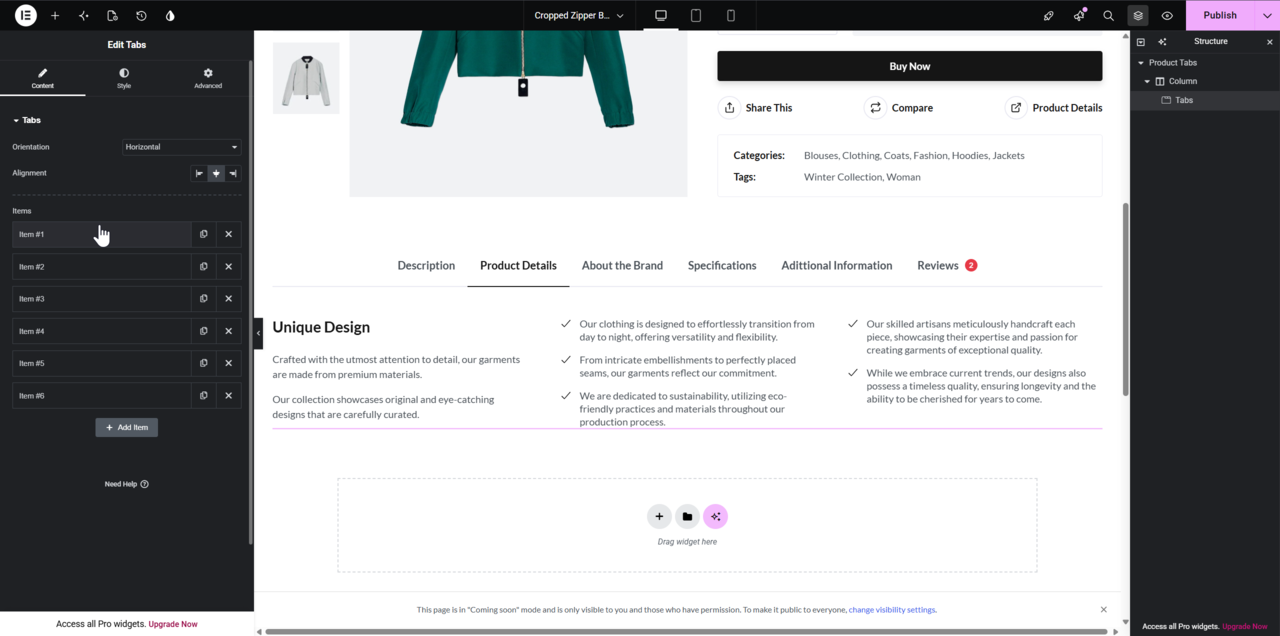
Elementor editor with the Gomax Core Tabs widget added to a product page, showing its tab settings panel. -
For each tab, add a title (for example, “Specifications”), set Content Type to Shortcode, and paste the shortcode from the matching template. Repeat for every tab you want to display.
-
Save your changes and preview the product page to confirm the tabs appear with the expected content.
If you have many products and don’t want to manage Elementor templates for each one, you can use Elementor’s own Tabs widget instead to add content directly inside each tab. See Tabs with Nested Containers in Elementor’s documentation.
For more on building tab content with Gomax Core widgets, see Gomax Core Widgets: Improve the Page Building Experience with Elementor.