How to Set Up a Currency Switcher Menu in WordPress
If you run a global WooCommerce store, or just want to offer visitors multiple currency options, you can add a currency switcher to your WordPress menu without any extra plugins. This guide walks you through building the menu structure and linking it to your header.
Create the Currency Switcher Menu
Section titled “Create the Currency Switcher Menu”- In the WordPress dashboard, go to Appearance » Menus.
- Click Create a new menu.
- Name it something like
Currency Switcher, then click Create Menu.
Add the Default Currency as the Main Item
Section titled “Add the Default Currency as the Main Item”- Click Custom Links.
- In the URL field, type
#. - In the Link Text (Label) field, enter your default currency, for example
USD. - Click Add to Menu, then expand the new item and, in CSS Classes, type
currency-switcher.
Add the Other Currencies as Submenu Items
Section titled “Add the Other Currencies as Submenu Items”For each additional currency (EUR, GBP, RMB, and so on), repeat the process:
- Add a Custom Link with
#as the URL. - Set the label to the currency code, for example
EUR. - Leave CSS Classes blank.
- Drag the item under the main
USDitem so it becomes a submenu entry.
Assign the Menu to a Theme Location
Section titled “Assign the Menu to a Theme Location”- Scroll down to Menu Settings.
- Check an available display location, for example Menu 6 or a similar slot.
- Click Save Menu.
You should now have a main item for your default currency with the other currencies listed as a submenu underneath it.
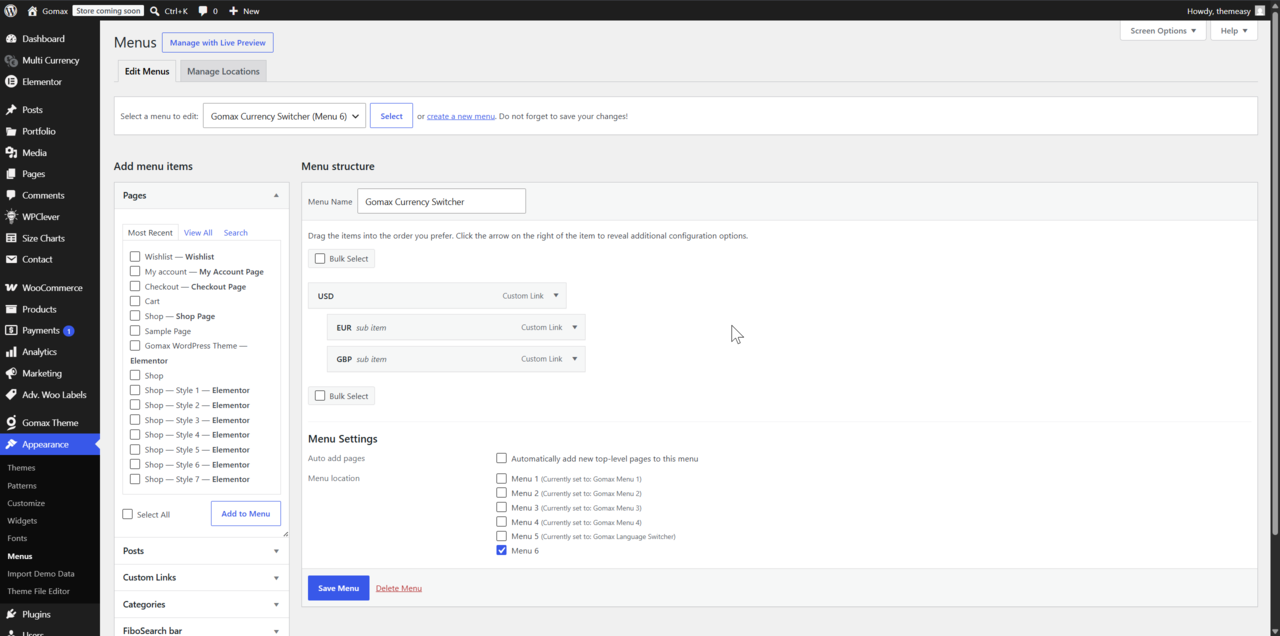
Link the Menu to Your Header with Elementor
Section titled “Link the Menu to Your Header with Elementor”- Go to Global Sections and edit your Navbar with Elementor.
- Locate the widget or control where you assign a WordPress menu.
- Select the Currency Switcher menu you just created.
Your site now has a currency switcher in the navigation menu. This setup only builds the menu structure — clicking a currency doesn’t change store prices on its own. To make the submenu items actually switch the displayed currency, connect them to a currency-switching plugin, or wire the submenu links to custom scripts or URLs that handle the conversion.
Gomax already supports this menu structure visually, so the switcher matches your theme’s styling as long as you’re running the latest version.