How to update a WordPress theme purchased from ThemeForest
Keep Gomax up to date by connecting the Envato Market plugin to your ThemeForest account. This article shows how to install the plugin, generate an API token, and check for theme updates.
How updates work
Section titled “How updates work”Theme updates are delivered through the Envato Market WordPress plugin, not through the standard WordPress theme repository. The plugin checks your ThemeForest purchases and lets you install new theme versions from your WordPress dashboard.
WordPress usually prompts you to install this plugin right after you install Gomax. You can also install it manually from Plugins » Add New if you skipped that prompt.
Connect your Envato account
Section titled “Connect your Envato account”-
Log in to ThemeForest. Click Sign In at the top right of the page and enter your ThemeForest username and password.
-
Go to the Envato API token generator to create a Personal Token.
-
Name the token something recognizable, for example
My WordPress site. Confirm these permissions are enabled:- View and search Envato sites
- Download your purchased items
- List purchases you’ve made
-
Agree to the terms and click Create Token. Copy the generated token — you won’t be able to view it again later.
-
In the WordPress admin, go to Envato Market and paste the token into the Enter your Envato API Personal Token field. Click Save Changes.
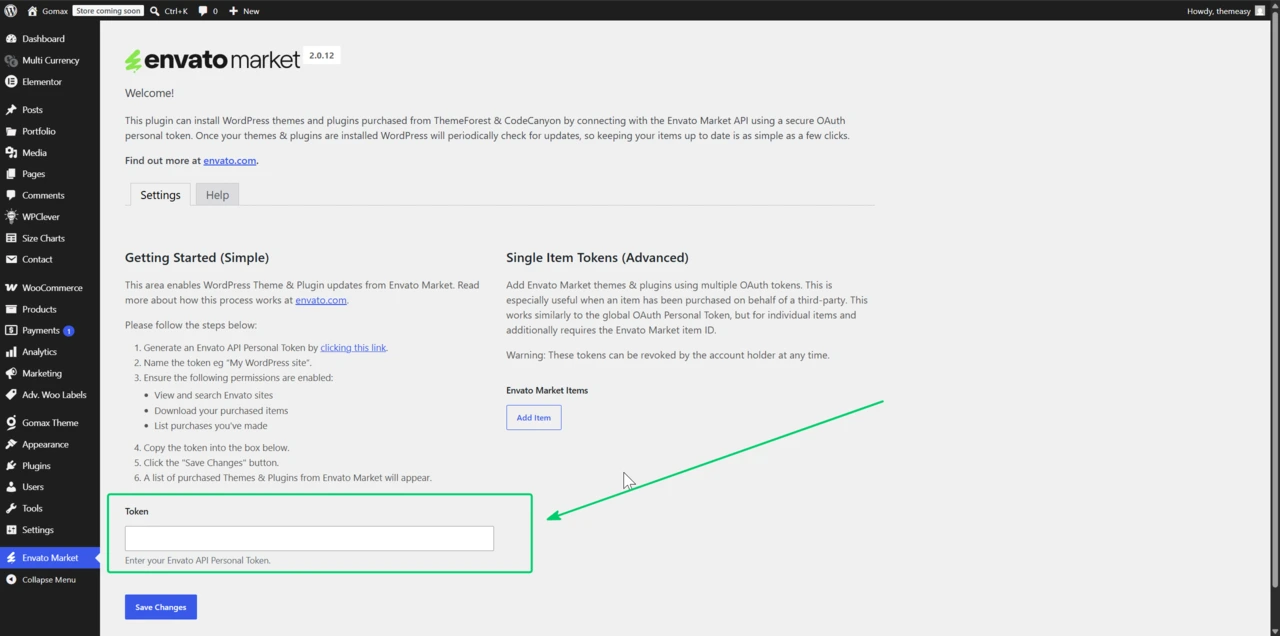
Check for and apply updates
Section titled “Check for and apply updates”Once the Envato API connection is active, the Envato Market page lists every WordPress theme you’ve purchased through ThemeForest, including Gomax. Any available update shows up here and can be installed with one click, the same way you’d update a plugin from the standard WordPress Updates page.
Before updating a live site, back up your files and database. If you haven’t activated your license yet, see Activate Theme License. For the initial setup, see How to install a WordPress theme purchased from ThemeForest.